Access control, in its simplest form, is about managing who can access what. In the digital world, this translates to securing data, networks, and systems from unauthorized access. Emojis can be used to visually represent different aspects of access control, from locks and keys symbolizing security to user icons representing individuals with varying levels of permissions. The use of emojis in this context can help simplify complex concepts and make security-related communications more engaging and understandable, especially in informal settings or when addressing a non-technical audience.
When using emojis to represent access control, consider the specific context. For example, a padlock emoji 🔒 might represent a locked system, while a key 🔑 could symbolize the credentials needed to gain access. User avatars 👤 or group icons 👥 can represent different user roles and their associated permissions. The combination of these emojis can create visual narratives that illustrate access control policies and procedures. It's important to be mindful of cultural interpretations of emojis, as some symbols may have different meanings in different regions. Also, be aware of cross-platform differences in emoji design, ensuring that your message is consistently understood across various devices and operating systems. Using emojis judiciously can enhance communication and improve understanding of access control concepts, but overusing them can lead to confusion or misinterpretation.
Furthermore, consider using emojis to represent different levels of access, such as a green checkmark ✅ for granted access and a red cross ❌ for denied access. This can be particularly useful in user interfaces or documentation to quickly convey the status of access requests. You can also use emojis to represent different authentication methods, such as a fingerprint 🔏 for biometric authentication or a password ⌨️ for traditional password-based access. When communicating about access control incidents, such as unauthorized access attempts, emojis like the siren 🚨 or the exclamation mark ❗ can be used to draw attention to the urgency of the situation. By carefully selecting and combining emojis, you can create a visual language that effectively communicates the principles and practices of access control.
18+Emoji
8Messages
5Tips
⚡
Quick Copy
Copy most popular emojis with one click
🔒
Locked
🔑
Key
👤
Bust in Silhouette
👥
Busts in Silhouette
✅
Check Mark
❌
Cross Mark
🚨
Police Car Light
❗
Exclamation Mark
🔏
Locked with Pen
⌨️
Keyboard
🧪 Emoji Mashups (Emoji Kitchen)
Fun mashups created by combining Access Control emojis with Emoji Kitchen. Download and use them freely.
Help grow the Access Control collection! Suggest emojis or symbols you think are missing and contribute to the community.
💡 Missing an emoji/symbol?
📖
Meaning & Usage
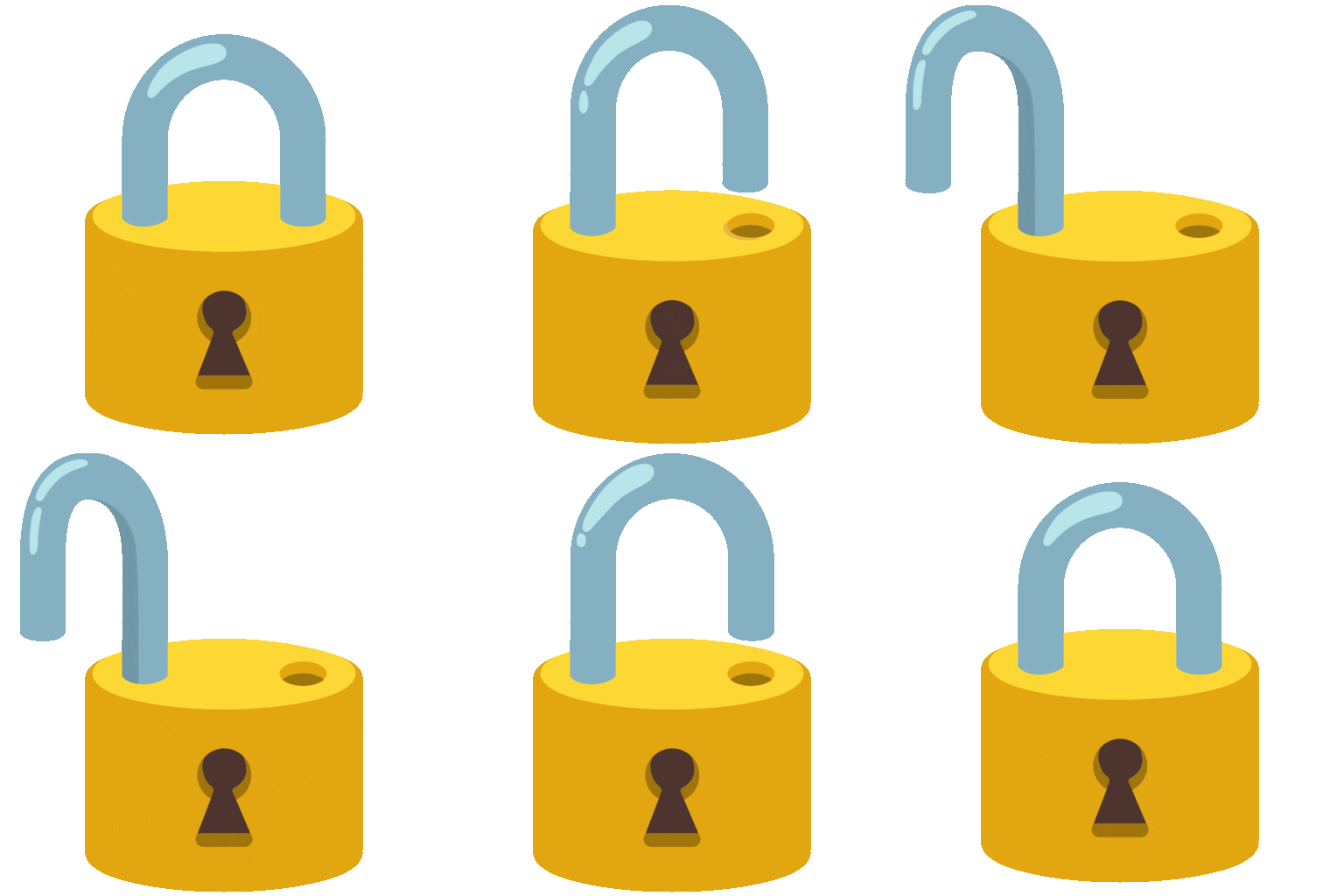
🔒
Locked
Represents a secure system or resource. Commonly used to indicate that access is restricted and requires authorization. On some platforms, the lock may appear more or less detailed, but the meaning remains consistent.
🔑
Key
Symbolizes the credentials or authorization needed to gain access. Can represent a password, token, or other authentication method. The design varies across platforms, from a simple skeleton key to a modern car key.
👤
Bust in Silhouette
Represents a user or individual. Can be used to indicate a single user account or a specific person with access privileges. The silhouette is generally gender-neutral.
👥
Busts in Silhouette
Represents a group of users or a team. Can be used to indicate a group of users with shared access permissions. Useful for representing role-based access control.
✅
Check Mark
Indicates that access has been granted or a task has been completed successfully. Often used to confirm that a user has been authenticated or a permission has been assigned.
❌
Cross Mark
Indicates that access has been denied or a task has failed. Can be used to show that a user has been rejected or a permission has been revoked.
🚨
Police Car Light
Represents an alert or warning, often used to indicate a security incident or unauthorized access attempt. The flashing light draws attention to the urgency of the situation. Different platforms may show different car styles.
📱
Platform Appearances
🔒 Locked
Google NotoApache 2.0
Twitter/XCC-BY 4.0
Noto AnimatedApache 2.0
Fluent 3DMIT
OpenMojiCC BY-SA 4.0
🔑 Key
Google NotoApache 2.0
Twitter/XCC-BY 4.0
Fluent 3DMIT
OpenMojiCC BY-SA 4.0
👤 Bust in Silhouette
Google NotoApache 2.0
Twitter/XCC-BY 4.0
Fluent 3DMIT
OpenMojiCC BY-SA 4.0
👥 Busts in Silhouette
Google NotoApache 2.0
Twitter/XCC-BY 4.0
Fluent 3DMIT
OpenMojiCC BY-SA 4.0
✅ Check Mark
Google NotoApache 2.0
Twitter/XCC-BY 4.0
Noto AnimatedApache 2.0
Fluent 3DMIT
OpenMojiCC BY-SA 4.0
❌ Cross Mark
Google NotoApache 2.0
Twitter/XCC-BY 4.0
Noto AnimatedApache 2.0
Fluent 3DMIT
OpenMojiCC BY-SA 4.0
ℹ️ All images shown are from open-licensed sources (Apache 2.0, MIT, CC-BY 4.0, CC BY-SA 4.0) and are free to use.
User permissions updated. 👤 Now you have admin access. ✅
Reset your password for enhanced security. 🔑🔒
Two-factor authentication enabled! 📱🔒
Group access updated. 👥 All members now have read-only access. ✅
System locked for maintenance. 🔒 Please try again later. ⏳
🎨
Related Emojis
🛡️
Shield
💻
Laptop
📱
Mobile Phone
🌐
Globe with Meridians
🔑
Key
🔒
Locked
⚙️
Gear
🔏
Locked with Pen
💡
Usage Tips
🎯
Context is Key
Always consider the context when using access control emojis. Ensure that the emojis accurately reflect the message you're trying to convey. Using the wrong emoji can lead to confusion.
🎯
Platform Consistency
Be aware of cross-platform differences in emoji design. Test your messages on different devices and operating systems to ensure that the emojis are displayed as intended. Some emojis may appear differently on Apple, Google, Samsung, or Microsoft devices.
🎯
Combine Emojis
Combine multiple emojis to create more complex and nuanced messages. For example, use 🔑🔒 to represent a secure password or 👤✅ to indicate that a user has been granted access.
🎯
Avoid Overuse
Use emojis sparingly and only when they add value to your message. Overusing emojis can make your message appear unprofessional or confusing. Use them to highlight key points or add visual interest.
🎯
Accessibility
Consider users who may be using screen readers or other assistive technologies. Provide alternative text descriptions for your emojis to ensure that your message is accessible to everyone.
🔗
Similar Combinations
Discover more emoji combinations related to Access Control